Create and Manage Group Shared Reservation
Stay is enhanced to support the creation and management of group shared reservations, enabling properties to apply consistent settings across group bookings while maintaining the configured rate and charge split rules.
Bulk Update of Reservations
When shared reservations within a group are selected and updated using the Bulk Update option (Group ➜ Reservations tab ➜ Bulk Update), the Bulk Update pop-up screen will be displayed. When users update the routing rules or auto recurring charges and click Save, a Confirmation pop-up screen will appear with the following message: Only recurring fees are updated – Do you want to add the auto recurring fee for all the shared reservations in the group?
-
Yes - Updates apply to the entire share set. Room charges are split according to the split option chosen when the share was created.
-
No - Updates apply only to the selected reservations, and charges post only to those reservations.
When users attempt to modify the arrival or departure date through the Bulk Update pop-up screen, the following message will be displayed: The system will continue to throw the existing error indicating that the reservation is part of a shared set.
Update Housekeeping Pattern
The housekeeping pattern will be updated across all shared reservations, regardless of the primary or secondary status.
Sample Scenario
-
When R1 and R2 are two shared reservations and no housekeeping pattern exists in the group preset at the time of share creation, both the reservations will inherit the primary reservation’s housekeeping pattern.
-
When a pattern is added to the group preset and later when a reservation is added to the existing share set, then the newly added reservation will inherit the currently active housekeeping pattern of the share set.
Split Charges for Groups
When creating a group share for the first time (add existing or add new reservations), users can modify the charge split option selected in the Add Charge section of the Add Existing Reservations pop-up screen and Split Rate pop-up screen. Once the charge split option is selected, it can be modified again only through the Charges pop-up screen (Reservation ➜ Reservation Summary ➜ Share badge ➜ Charges). Users will not be able to change the split option again from the Add Charge section when adding additional reservations to a share set.
Disconnect Reservations and Break Share
When a group shared reservation is broken from the group, the share set will be broken automatically. A transient reservation and a group reservation will not be shared within the same share set.
When users click the Disconnect option (Group ➜ Reservations tab ➜ Reservations section ➜ More ➜ Disconnect) to disconnect the shared reservations from a group, a Confirmation pop-up screen will be displayed that prompts users to confirm whether the share set must be broken.
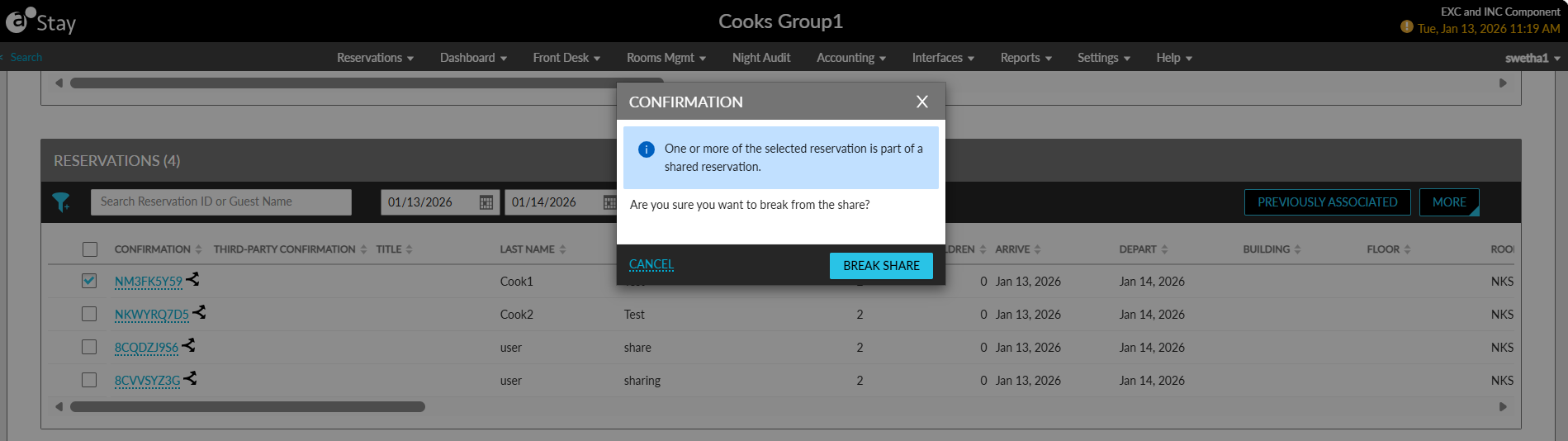
When user confirms to break the share, the existing Batch Disconnect Reservations pop-up screen will be displayed.
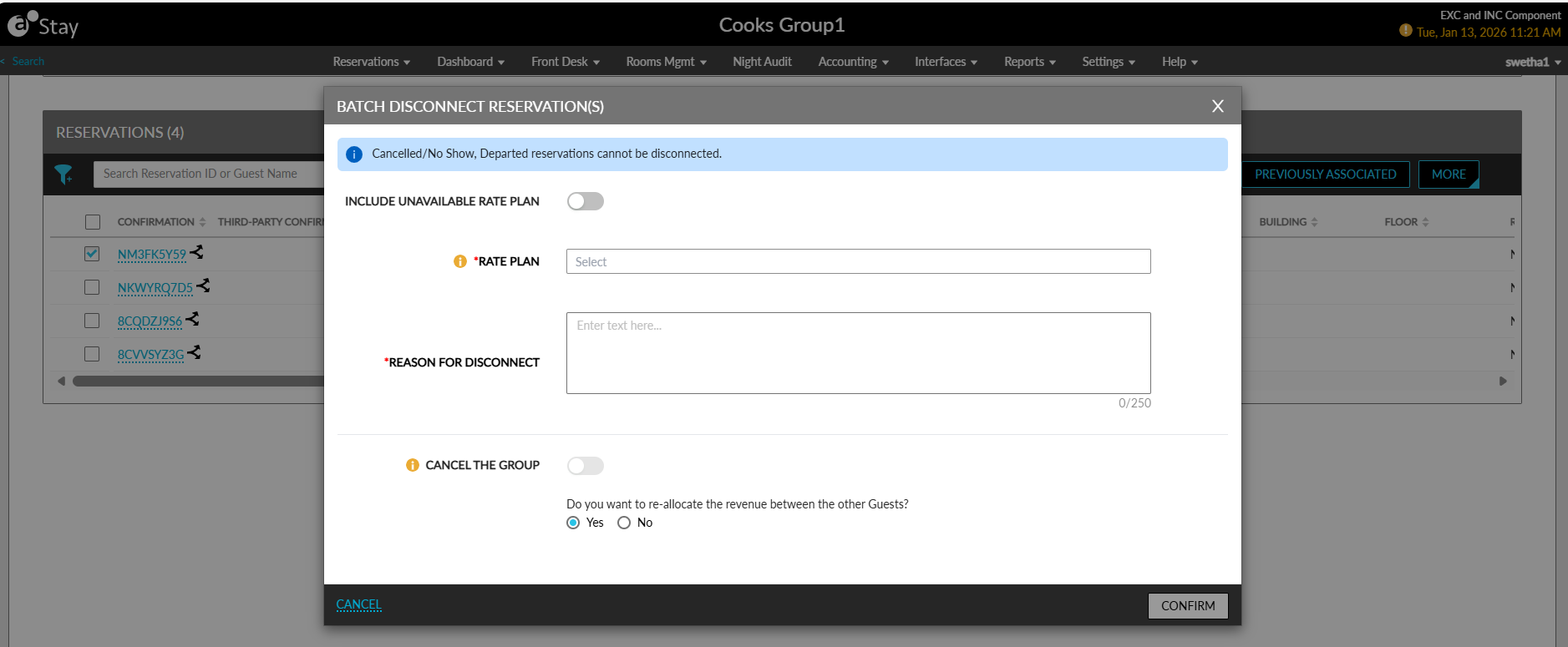
This screen allows users to perform the following actions:
-
Select the rate plan for the disconnected reservations
-
Enter the reason for the disconnect
-
Choose to cancel the group
-
Re-allocate the revenue between the other guests
When users attempt to disconnect reservations from the Reservations section, the reservations are validated to determine whether they belong to a share set. When at least one selected reservation is part of a share set, the reservation cannot be disconnected, and a message is displayed when users click Modify Reservation Disconnect.
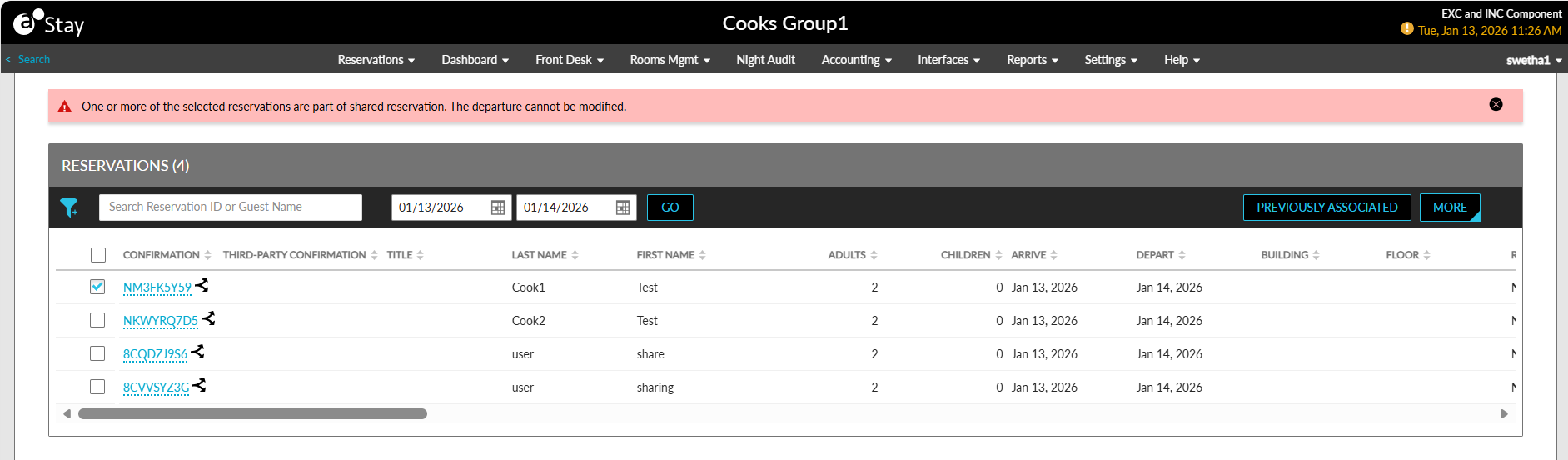
When users attempt to modify the stay dates from the Reservations section using the Modify Reservation option, the dates will not be modified, and the following message will be displayed as a banner: One or more of the selected reservations are part of shared reservation. The departure cannot be modified.
Records Created for Modifications
A record is created in the Audit Log screen and Reservation History section whenever the following actions are performed:
-
Bulk update of reservations
-
Apply reservation presets
-
Update charge split options
-
Disconnect and break share
-
Modify revenue recalculation options
-
Group share creation and modification